
What Makes the Heliocol Solar Pool Heater Controller WiFi Integration Essential for Modern Pool Owners?
Connecting your Heliocol solar pool heater to WiFi unlocks a new level of convenience and efficiency. Instead of manually adjusting valves or guessing when to run the pump, a smart controller lets you monitor and manage your system from your smartphone. This step-by-step guide walks you through the entire WiFi integration process for Heliocol systems, covering everything from hardware compatibility to app configuration, ensuring you maximize your solar heating investment.
WiFi integration isn’t just about remote control—it’s about fine-tuning performance. You can schedule heating cycles based on real-time weather, check water temperature trends, and receive alerts for potential issues like flow loss or freezing. For homeowners already using a Heliocol Solar Pool Heater Automatic Diverter Valve Installation Guide, adding WiFi control transforms a good system into a smart, hands-off heating solution.
Which Heliocol Controllers Support WiFi Integration?
Before buying a WiFi-enabled controller, verify compatibility with your existing Heliocol solar array. Not all controllers on the market will work seamlessly with Heliocol’s proprietary absorber panels and diverter valves. The table below outlines the most common Heliocol-compatible controllers and their WiFi capabilities.
| Controller Model | WiFi Module Compatibility | App Compatibility | Key Features | Approx. Price (USD) |
|---|---|---|---|---|
| Heliocol HC-1000 | Built-in WiFi (2.4 GHz) | Heliocol SmartPool (iOS/Android) | Remote temp control, scheduling, pressure alerts | $349 – $429 |
| Heliocol HC-500 | External HC-WiFi Module (sold separately) | Heliocol SmartPool (iOS/Android) | Basic remote on/off, temp monitoring, freeze protection | $229 – $289 (controller); $79 (module) |
| Third-Party (e.g., Pentair IntelliCenter) | Requires RS-485 adapter and custom programming | Pentair Home | Full automation, integration with pumps/valves, advanced scheduling | $700 – $1,200 (controller + setup) |
For most Heliocol users, the HC-1000 offers the smoothest setup experience with its integrated WiFi. However, if you already own an HC-500, the external module is a cost-effective upgrade. Third-party solutions work well but require more technical skill—consider consulting a professional if you choose that route.
How Do You Install the Heliocol WiFi Controller Hardware?
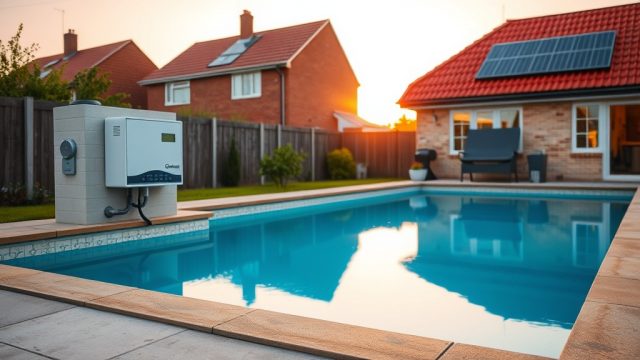
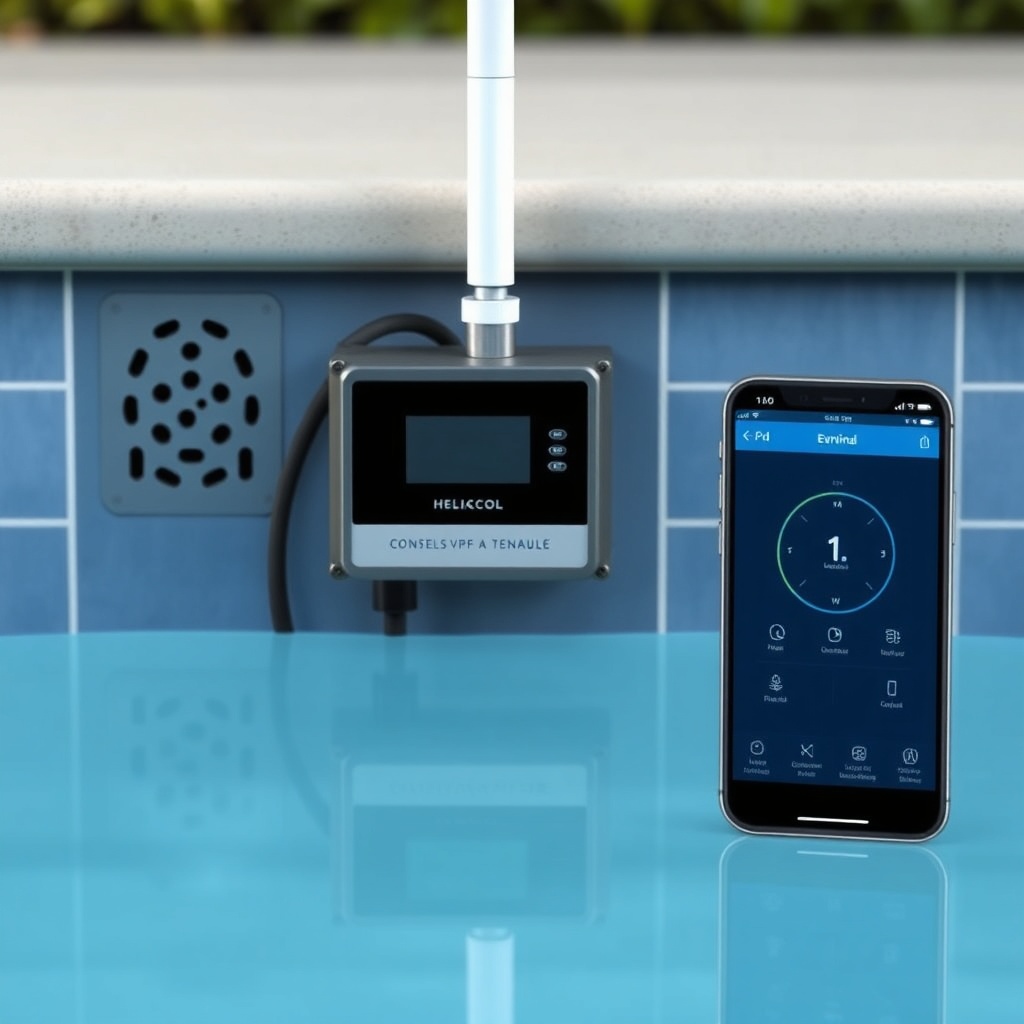
Installing the controller hardware is a straightforward DIY project, provided you follow safety protocols. Start by turning off power to your pool pump at the circuit breaker. Mount the controller in a weather-protected area, ideally near the existing pump and filter but away from direct sprinkler spray.
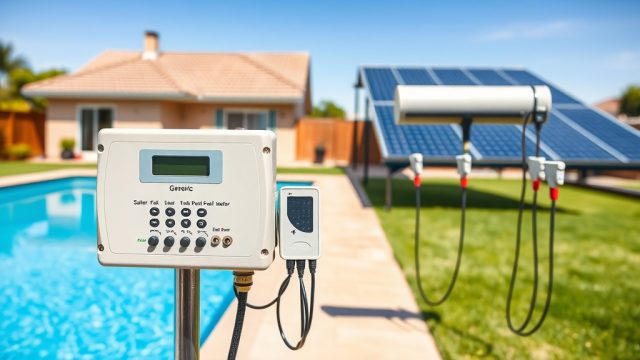
For the HC-1000, connect the power supply wires (typically 12V DC from a transformer) to the controller’s input terminals, ensuring polarity matches. Attach the temperature sensor probe by inserting it into the pool’s plumbing downstream of the solar panels—usually in a tee fitting before the return line. Secure the WiFi antenna on top of the controller box using the included adhesive mount.
If you’re retrofitting an HC-500 with the external HC-WiFi module, plug the module into the controller’s designated RJ-12 port and snap it into place. Run the antenna cable straight up without kinks—avoid placing it inside a metal enclosure to prevent signal interference. Finally, restore power and check that the controller’s LCD screen lights up and shows the current temperature. For roof-mounted setups, refer to the Heliocol Solar Pool Heater Roof Mount Attachment Methods: Pros and Cons of Rails vs Clips to ensure your panels are secure before running sensor wires.
What Are the App Setup Steps for Heliocol WiFi Integration?
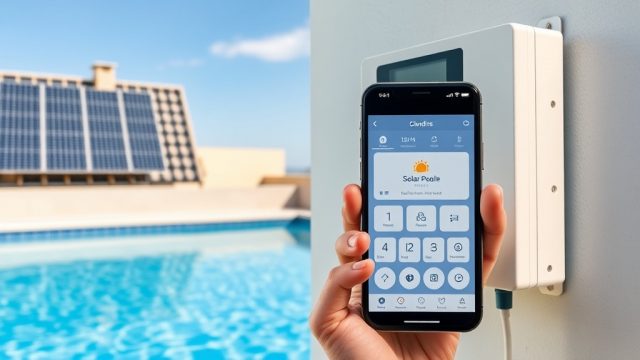
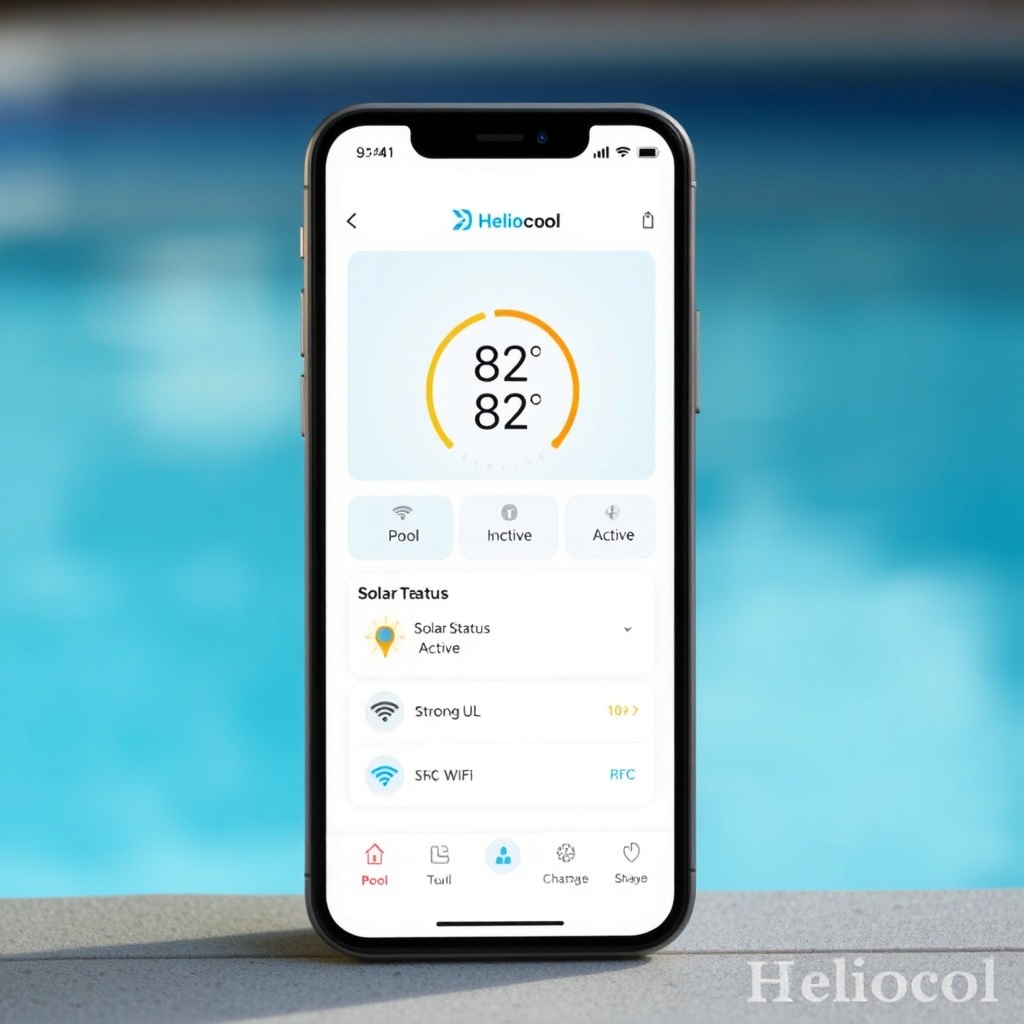
Once the hardware is installed, the app configuration takes about 10 minutes. Download the Heliocol SmartPool app from the iOS App Store or Google Play Store. Create an account using your email address, then follow these steps:
- Step 1: Put the Controller in Pairing Mode – Press and hold the WiFi button on the controller (labeled “WiFi” or showing an antenna icon) for 5 seconds until the LED starts blinking blue. This indicates it’s ready to connect.
- Step 2: Connect to the Controller’s Temporary Network – In your phone’s WiFi settings, look for a network called “Heliocol-XXXX”. Connect to it (no password needed). The app will guide you through this step.
- Step 3: Enter Your Home WiFi Credentials – In the app, select your home WiFi network (2.4 GHz only—5 GHz is not supported) and enter the password. The controller will then switch from its temporary network to your home network.
- Step 4: Confirm Connection – The app will display “Connected” after about 30 seconds. The controller’s LED will turn solid green. You can now set your pool name and location for weather-based automation.
If the connection fails, check that your phone is near the controller and that your router is broadcasting on 2.4 GHz. Some routers combine 2.4 and 5 GHz under one SSID, which can cause issues—temporarily disable the 5 GHz band in your router settings or use a separate guest network on 2.4 GHz.
How Do You Optimize WiFi Settings for Reliable Remote Access?
Reliable remote access depends on more than just a successful pairing. To maintain a stable connection, place your router within 50 feet of the controller with minimal obstructions like concrete walls or metal ductwork. If your controller is in a basement pump room, consider using a WiFi extender or a powerline adapter.
Set a static IP address for the controller in your router’s DHCP reservation settings. This prevents the IP from changing after a power cycle, which can cause the app to lose connectivity. In the Heliocol app, enable push notifications for critical alerts like “Pump Loss” (no flow), “Overheat Protection” (panel temp > 200°F), and “Freeze Warning” (air temp below 38°F).
For homeowners with variable Heliocol Solar Pool Heater Ground Mount Tilt Angle Optimization: Best Summer and Winter Settings, the controller’s weather-based automation can adjust pump run times seasonally. In summer, program the system to run from 10 a.m. to 4 p.m. for maximum heat gain; in winter, shorten the window to avoid heat loss during low sun angles. The WiFi app makes these schedule changes instant without climbing onto the roof.
What Owners Say About Heliocol WiFi Integration
Heliocol users consistently praise the convenience of WiFi control, especially those with large pool systems. Mark, a Florida homeowner, reports: “I added the HC-1000 last summer. Now I can turn the solar on from work if a cold front comes through—my water stays at 84°F without me thinking about it.” A California user notes that the alerts saved his system from a freeze: “I got a notification at 2 a.m., went out, and diverted the water manually. Saved me hundreds in panel repairs.”
However, some users mention initial setup frustration with the external HC-WiFi module on the HC-500. One reviewer on a pool forum wrote: “It took two resets to get the module recognized, but after that it’s been rock solid for two years.” The consensus is that Heliocol’s app interface is user-friendly, though occasional app updates can reset settings—users recommend keeping a screenshot of your schedule as a backup.
For long-term reliability, one owner emphasizes the importance of keeping firmware updated: “Set a reminder every six months to check for updates in the app. They often improve connectivity and add new features.” If you’re dealing with an older controller that lacks WiFi support, a retrofit with a third-party system (like the Pentair option listed above) is viable but may void the Heliocol warranty—check with your installer first. Also, if you’ve experienced Heliocol Solar Pool Heater Absorber Plate Delamination: Causes and Repairs, WiFi monitoring can help spot overheating events that lead to delamination by alerting you to temperature spikes.
Frequently Asked Questions About Heliocol Solar Pool Heater Controller WiFi Integration
Can I use the Heliocol app without a subscription?
Yes, the Heliocol SmartPool app is free to download and use. All basic features like remote monitoring, scheduling, and alerts are included at no extra cost. Some advanced features, such as historical data export or multi-controller management, may require a paid tier in the future, but currently no subscription is needed.
Does the Heliocol WiFi controller work with 5 GHz networks?
No, the Heliocol HC-1000 and HC-WiFi module only support 2.4 GHz WiFi networks. This is common for IoT devices due to range and compatibility reasons. If your router uses the same SSID for both bands, you may need to create a dedicated 2.4 GHz guest network or disable the 5 GHz band during setup.
How do I reset the Heliocol controller to factory settings?
To factory reset the HC-1000, press and hold the “Menu” and “WiFi” buttons simultaneously for 10 seconds. The screen will flash three times, and the controller will reboot. For the HC-500 with an external module, unplug the module, press the reset button on the controller (a small pinhole) using a paperclip for 5 seconds, then reconnect the module.
Will WiFi integration help prevent absorber plate cracks or delamination?
Indirectly, yes. By setting temperature threshold alerts, you can prevent the panels from overheating (above 200°F), which causes thermal stress on the absorber plates. If you already have a cracked plate, see the Heliocol Solar Pool Heater Absorber Plate Crack Repair: Step-by-Step Guide for DIY fixes before relying solely on WiFi monitoring.
Can I control the Heliocol diverter valve through the app?
Yes, when paired with the Heliocol HC-1000 or an external actuator module, the app includes a manual override for the automatic diverter valve. You can switch between “Pool Heating” and “Bypass” modes remotely. For a detailed installation guide, check the Heliocol Solar Pool Heater Automatic Diverter Valve Installation Guide.
What should I do if the WiFi connection drops frequently?
First, test the WiFi signal strength at the controller location using a phone app. If the signal is weak (below -70 dBm), move your router closer or install a mesh extender. Second, ensure the controller firmware is up to date in the app settings. Finally, avoid placing the controller or antenna near large metal surfaces or inside an electrical panel. If issues persist, contact Heliocol support for a possible hardware replacement.